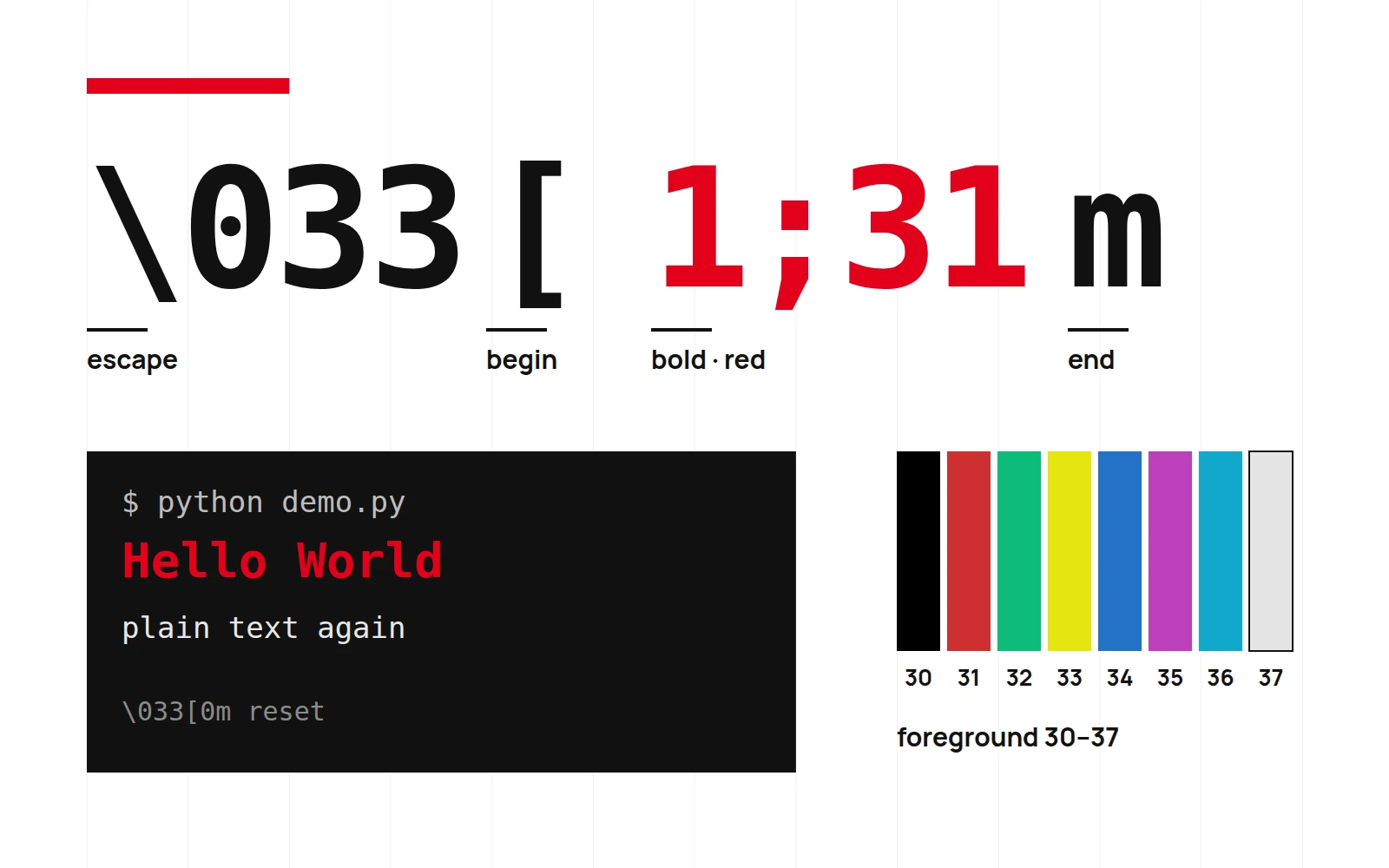
CLI output quickly becomes hard to scan when status messages, warnings, and errors all use the same color. A few control characters can make the important lines easier to spot. This article starts with the format of ANSI Escape Codes and then builds a small color palette for terminal output.
What Are They?
ANSI stands for American National Standards Institute. The terminal control sequences discussed here are commonly called ANSI Escape Codes.
ANSI Escape Codes are sequences of characters that look like random code. They usually begin with \033[ or \x1b[, followed by various control codes.
Here's an example:
print("\033[1;31mHello World\033[0m")
This code will print "Hello World" in bold red text. The \033[0m at the end is a reset code, preventing the following output from being affected by the red color.
Common Formatting Control Codes
You can use these values to style the text:
| Code | Effect |
|---|---|
| 0 | Reset (default) |
| 1 | Bold |
| 2 | Dim |
| 3 | Italic |
| 4 | Underline |
| 7 | Invert (reverse) |
Style codes can also be combined with color codes.
Color Control Codes
The text color codes in ANSI Escape Codes typically range from 30–37 (standard colors) and 90–97 (bright colors).
Here is the corresponding table:
| Code | Color |
|---|---|
| 30 | Black |
| 31 | Red |
| 32 | Green |
| 33 | Yellow |
| 34 | Blue |
| 35 | Magenta |
| 36 | Cyan |
| 37 | White |
| 90–97 | Bright Colors |
Background color codes correspond to 40–47 (standard colors) and 100–107 (bright colors), and they follow the same pattern as above:
| Code | Background Color |
|---|---|
| 40 | Black (Background) |
| 41 | Red (Background) |
| 42 | Green (Background) |
| 43 | Yellow (Background) |
| 44 | Blue (Background) |
| 45 | Magenta (Background) |
| 46 | Cyan (Background) |
| 47 | White (Background) |
| 100–107 | Corresponding Bright Background Colors |
You may notice that codes from 38 to 89 are rarely mentioned — so where did they go?
-
38 and 48: Advanced Usage for Custom Colors
38= Enable "custom foreground color" mode48= Enable "custom background color" mode
At this point, you need to specify the color with additional parameters, such as 256 colors (8-bit mode):
print("\033[38;5;198mA pink text\033[0m")38;5;198refers to color number 198 from the 256-color palette.
Or, use True Color (24-bit mode):
print("\033[38;2;255;105;180mHello in pink!\033[0m")38;2;<r>;<g>;<b>allows you to precisely specify RGB values.
-
39 and 49: The Reset Color Friends
39: Reset to the default foreground color49: Reset to the default background color
So, let’s summarize the color code map:
| Range | Function |
|---|---|
| 30–37 | Standard foreground colors |
| 90–97 | Bright foreground colors |
| 38 | Advanced foreground colors (256 colors / RGB) |
| 39 | Reset foreground color |
| 40–47 | Standard background colors |
| 100–107 | Bright background colors |
| 48 | Advanced background colors (256 colors / RGB) |
| 49 | Reset background color |
| 50–89 | ⚠️ Reserved, do not touch lightly |
Here’s a program to play around with:
for i in range(256):
    print(f"\033[48;5;{i}m {i:3} \033[0m", end=" ")
    if i % 16 == 15:
        print()
After running it, it will look something like this:
Combination Syntax Examples
The syntax format is:
\033[<format>;<text color>m
Example:
def colorstr(text, fmt=1, color=34):
    return f"\033[{fmt};{color}m{text}\033[0m"

print(colorstr("This is a bold blue text"))
A bit trendier:
print("\033[1;34;43mBlue text on yellow background, fashion explained\033[0m")
Notes
There are a few things to keep in mind when using color so that your output doesn't turn into a disaster:
- Always reset: Without
\033[0m, your output will inherit the color, turning a simple red message into a long red novel. - Jupyter has many limitations: While it can display color, cursor control and screen manipulation are mostly a dream.
- Windows Terminal has been updated: The new version finally does a good job; for the old version, use
colorama. - Don’t mess with log files: Unless you enjoy torturing yourself with regular expressions, it's better to save the text as plain text.
Extended Applications
You can wrap your own color utility module and even use Enum to write a cleaner call method:
from enum import Enum

class COLOR(Enum):
    RED = 31
    GREEN = 32
    BLUE = 34

class FORMAT(Enum):
    BOLD = 1
    UNDERLINE = 4

def colorstr(obj, color=COLOR.BLUE, fmt=FORMAT.BOLD):
    return f"\033[{fmt.value};{color.value}m{obj}\033[0m"
Application scenarios:
- Error and warning messages: Use red to say “There’s a problem here.”
- Success messages: A green checkmark is just delightful.
- Interactive menu prompts: Let the user know what to enter next.
Don’t Want to Handle It Yourself?
Many libraries have already packaged this for you, so you can use them directly.
Here are a few Python libraries you can refer to:
-
coloramaSolves cross-platform display issues, a Windows helper, and is easy to use:
from colorama import init, Fore, Style init() print(Fore.RED + "Hello in red!" + Style.RESET_ALL) -
termcolorProvides
colored(), no fuss:from termcolor import colored print(colored("Warning", "red", attrs=["bold"])) -
richSupports colors, tables, progress bars, Markdown—it's like React for CLI.
from rich import print
print("[bold red]This is a bold red text[/bold red]")
Summary
Start with \033[ and assign consistent styles to errors, success, and pending states. Check that the colors remain readable on light and dark backgrounds. Keep the status in the text as well, since terminal color support and themes vary.